SETTINGS
The Settings panel provides access to the Catalyst opt-in message configuration, date and time configuration, and test customers configuration. It consists of 3 (three) sections: Opt-in-Message (default), Date & Time, and Test Customers.
Note: This panel is only accessible to users that belong to the Power User (view-only) role or Tenant Admin (view and edit) role. The Settings menu option is hidden for users that belong to the User role.
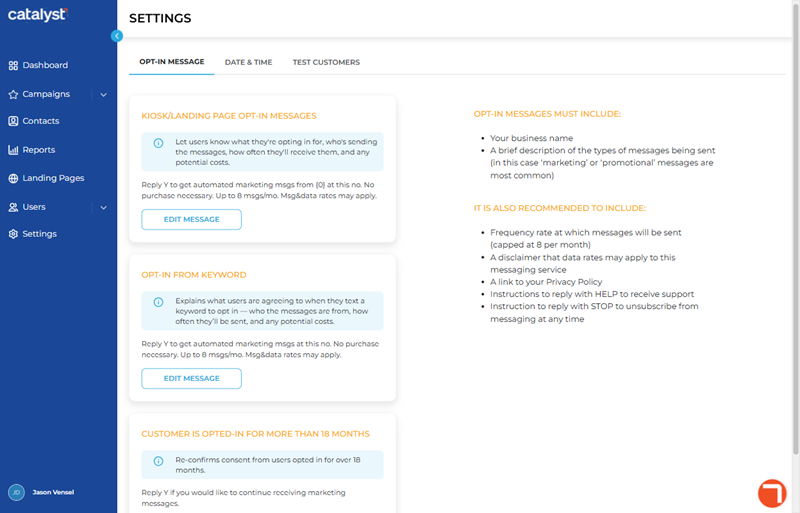
OPT-IN-MESSAGE
The Opt-In-Message section displays by default when the Settings panel opens.
Message Components
OPT-IN MESSAGES MUST INCLUDE
All opt-in messages must include the following components (this portion of the SMS is built into the message and cannot be edited):
- Your business name
- A brief description of the types of messages being sent (in this case ‘marketing’ or ‘promotional’ messages are most common).
Important: The bold portion of the message text (see below) is required for compliance purposes and can't be removed or edited. Attempts to remove or edit it and then save the changes open a warning.
IT IS ALSO RECOMMENDED TO INCLUDE
Opt-in messages should also include the following components.
- Frequency rate at which messages will be sent (capped at 6 per month)
- A disclaimer that data rates may apply to this messaging service
- A link to your Privacy Policy
- Instructions to reply with HELP to receive support
- Instruction to reply with STOP to unsubscribe from messaging at any time
KIOSK/LANDING PAGE OPT-IN MESSAGES
The Kiosk/Landing Page Opt-In Messages section provides the ability to configure the opt-in SMS text message that is sent to a contact after they sign up to receive SMS text messages from a kiosk terminal or landing page.
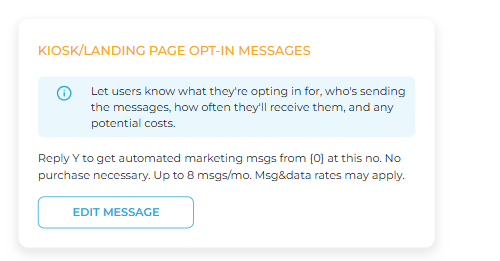
EDIT MESSAGE
The function provides the ability to edit the existing opt-in message text. When selected, it opens the message text editor. When the editor opens, a and functions are available.
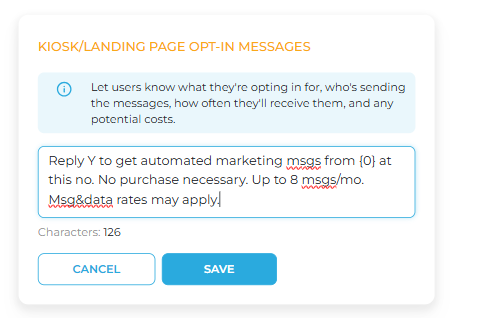
Note: The number of characters in the existing message is provided below the message text editor. The maximum length is 160 characters.
CANCEL
The function provides the ability to discard any changes to the existing message and close the text message editor. Note: When the function is selected, the editor immediately closes, without prompting for confirmation.
SAVE
The function provides the ability to save any changes to the existing message and close the text message editor. Note: When the function is selected, a Replace SMS Message? dialog opens, prompting, "This action will replace your current SMS message. Are you sure you want to continue?".
.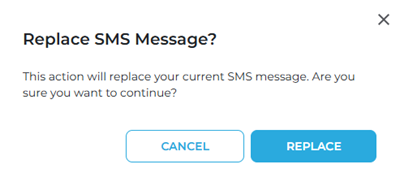
CANCEL
Select to close the dialog and return to the text message editor.
REPLACE
Select to close the dialog, save the message changes, and close the text message editor.
OPT-IN FROM KEYWORD
The section provides the ability to view and edit the text sent to users explaining what they are agreeing to when they text a keyword to opt in - who the messages are from, how often they’ll be sent, and any potential costs.
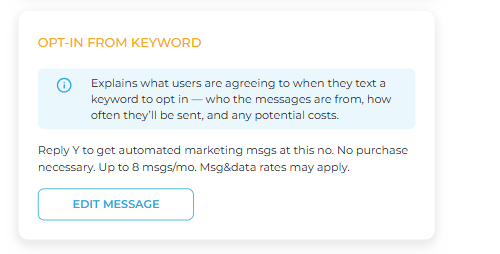
EDIT MESSAGE
The function provides the ability to edit the existing opt-in message text. When selected, it opens the message text editor, with and functions.
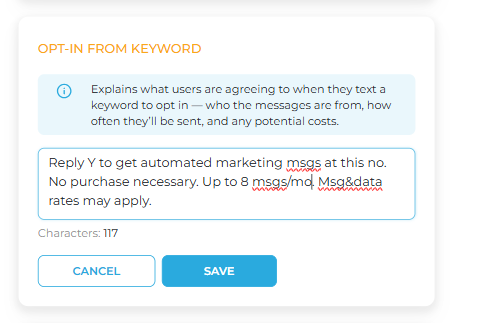
Note: The number of characters in the existing message is provided below the message text editor. The maximum length is 160 characters.
CANCEL
The function provides the ability to discard any changes to the existing message and close the text message editor. Note: When the function is selected, the editor immediately closes, without prompting for confirmation.
SAVE
The function provides the ability to save any changes to the existing message and close the text message editor. Note: When the function is selected, a Replace SMS Message? dialog opens, prompting, "This action will replace your current SMS message. Are you sure you want to continue?".
.
CANCEL
Select to close the dialog and return to the text message editor.
REPLACE
Select to close the dialog, save the message changes, and close the text message editor.
CUSTOMER IS OPTED IN FOR MORE THAN 18 MONTHS
The section provides the ability to view and edit the text sent to users who have opted in to messages for more than 18 months to re-confirm consent to continue to receive messages. Users who are opted in for more than 18 months who don't renew their consent will no longer receive messages.
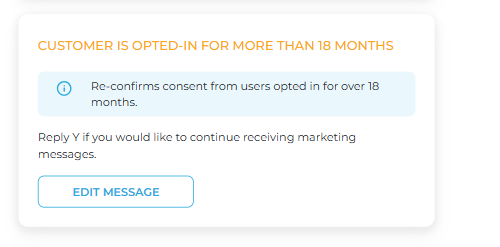
EDIT MESSAGE
The function provides the ability to edit the existing opt-in message text sent to customers who have been opted in for more than 18 months. When selected, it opens the message text editor, with and functions.
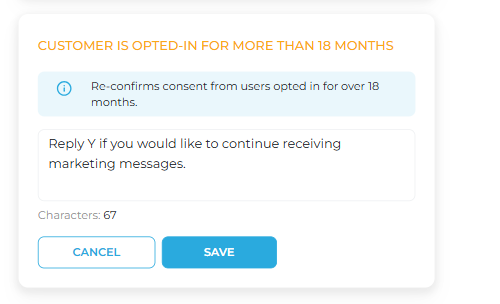
Note: The number of characters in the existing message is provided below the message text editor. The maximum length is 160 characters.
CANCEL
The function provides the ability to discard any changes to the existing message and close the text message editor. Note: When the function is selected, the editor immediately closes, without prompting for confirmation.
SAVE
The function provides the ability to save any changes to the existing message and close the text message editor. Note: When the function is selected, a Replace SMS Message? dialog opens, prompting, "This action will replace your current SMS message. Are you sure you want to continue?".
.
CANCEL
Select to close the dialog and return to the text message editor.
REPLACE
Select to close the dialog, save the message changes, and close the text message editor.
DATE & TIME
The Date & Time section displays the current local time and date. It includes the ability to configure the local time zone.
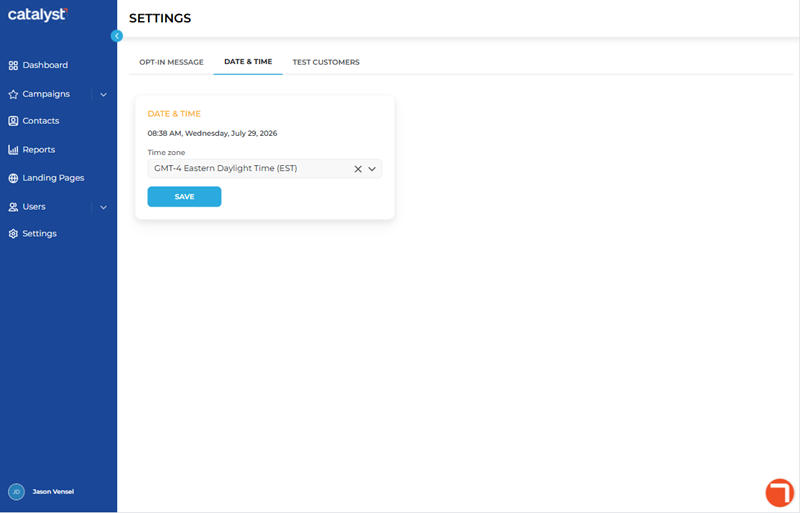
Current Time, Day, and Date
The current time, day, and date provides the day of week, month, day date, and year. It is automatically displayed based on the configured time zone (see below).
Time zone
The Time zone setting provides the ability to select a time zone for Catalyst.
SAVE
The function provides the ability to save any changes to the configured time zone.
TEST CUSTOMERS
The section (available to Tenant Admins and Power Users) provides the ability to create and manage test SMS and/or email contacts for safely testing campaigns. Test customers should be configured with live, accessible phone numbers and email addresses because the Catalyst test function sends an actual message to the test customers configured here. It includes configurable fields for Phone, Email, First name, Last name, and Opted in status, and the ability to create multiple test customers.
Important: Test customers are only available to the Catalyst user who creates them.
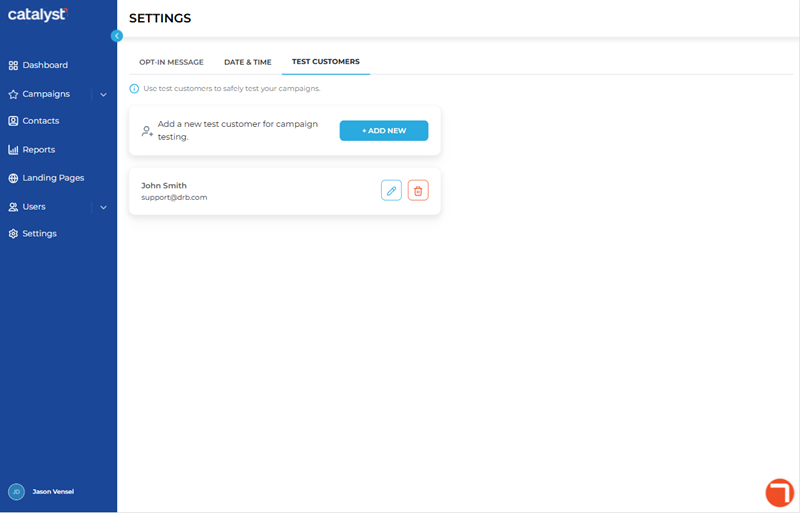
+ ADD NEW
The function provides the ability to create and configure new test customers. Selecting the function opens an dialog.
ADD NEW TEST CUSTOMER
The dialog provides configuration settings for phone number, email address, customer name, and opt-in status.
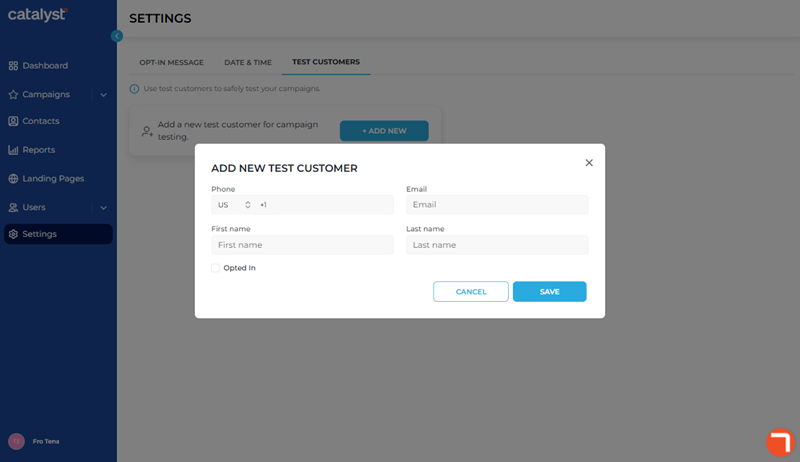
Phone
The Phone setting provides the ability to specify a phone number to send test SMS text messages to. This should be a live mobile device phone number that is capable of receiving SMS text messages that the Catalyst user can access in order to view the test SMS text messages.
The Email setting provides the ability to specify an email address to send test email messages to. This should be a live email address that the Catalyst user can access, in order to view the test email messages.
First name
The First name setting provides the ability to specify a first name for the test customer. This will enable the Catalyst user to verify that personalized messages will correctly display a contact's first name.
Last name
The Last name setting provides the ability to specify a last name for the test customer. This will enable the Catalyst user to verify that personalized messages will correctly display a contact's last name.
Opted in
The Opted in setting provides the ability to specify whether the test customer is successfully opted in to receive messages. This will enable the Catalyst user to verify that messages will correctly display based on whether a contact is opted in or not.
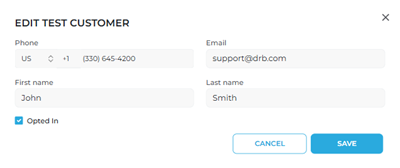
Edit
The Edit function provides the ability to change the phone number, email address, name, or opt in status for the corresponding test customer.

Selecting the function opens the dialog, where the changes can be made.
Remove
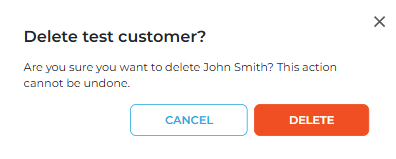
The Remove (delete) function provides the ability to delete the corresponding test customer from the Catalyst system.
Selecting the function opens the Delete test customer? dialog.
Updated: 081026