BARCODES
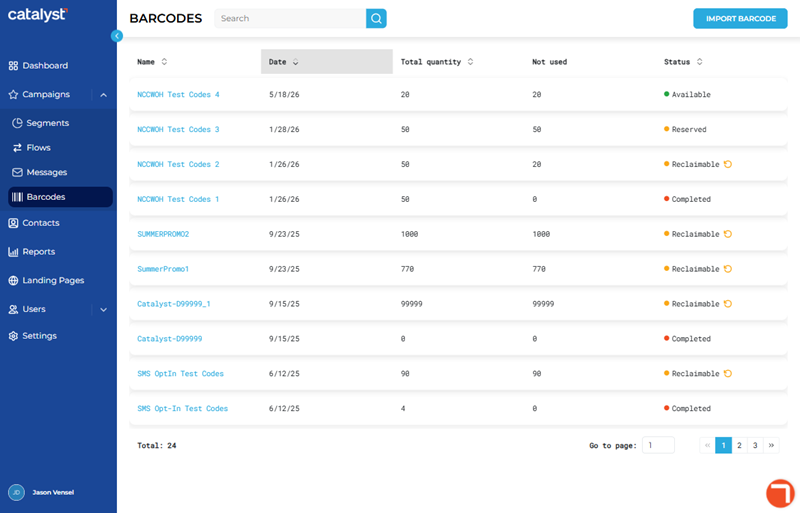
The Barcodes panel, accessible from the Catalyst main menu by selecting Barcodes, provides the ability to add, view, and manage all of an organization's codes that have been imported into Catalyst. Codes can be discounts or prepaid items that can then assigned to messages and campaigns for distribution to SMS text or email recipients. The included function is available to import new codes from a CSV file.
Note: A batch may contain only a single code, for example, one that offers a 25% discount to anyone who has the code.
IMPORT BARCODE
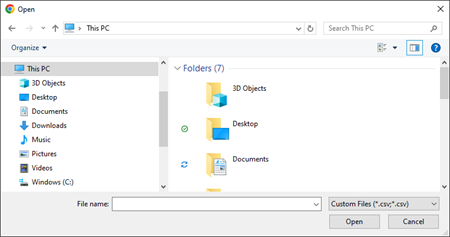
The function opens the standard Windows Open file selection dialog, which can be used to select and import a CSV file. Note: Depending on the code batch file size, the import process can take up to 15 minutes.
Codes List
The Codes List provides access to all the codes that currently exist in Catalyst. It includes a search function to help locate a specific code or codes from the list. Use the codes list to view and manage existing codes.
Search
The search tool provides the ability to locate a specific code batch by Name. Note: Search ignores Status.
- The list auto-updates as soon as one (1) character is entered in the search tool; selecting Enter or the search icon isn't necessary to trigger the system to search (although selecting either will trigger the search function slightly faster).
- Search returns matches for any part of a code batch name, for example, a search for ar would return all of the following code batch names: Yearly Codes and Ardvark Discount Codes.
- Restore the list to all code batches by clearing the search input.
Name
The Name provides the name of the code batch. It is formatted as a link that, when selected, opens the code Details panel, with detailed information about the code(s).
Date
The Date provides the date the corresponding code batch was imported into Catalyst.
Total quantity
The Total quantity provides the total number of codes in the corresponding code batch.
Not used
The Not used provides the total number of codes in the corresponding code batch that haven't been used.
Status
The Status provides the current availability state of the corresponding code batch.
Available
The Available status means the code batch can be used in a campaign.
Note: Additional codes can be imported (from the code Details panel) and added to a code batch with an Available status.
Completed
The Completed status means that all codes in the batch were used.
Reclaimable
The Reclaimable status means the un-used codes in the batch can be re-used.
Note: The un-used codes can be re-claimed from the code Details panel.
Reserved
The Reserved status means the code batch is currently assigned to a campaign.
Note: Additional codes can be imported (from the code Details panel) and added to a code batch with a Reserved status.
Processing
The Processing status means the code batch is being imported into Catalyst.
Failed
The Failed status means Catalyst attempted to import the code batch, but the process failed.
Updated: 081026