CODE DETAILS (BARCODES)
The Code Details panel, accessible from the Barcodes panel by selecting the name of a code batch, provides the ability to view additional information about a code batch, and depending on its status, rename the code batch, reclaim/re-use un-used codes, and/or add more codes to the batch by importing new codes from a CSV file.
Note: The functions (edit, reclaim, and import) available in the Code Details panel depend on the status of the code batch.
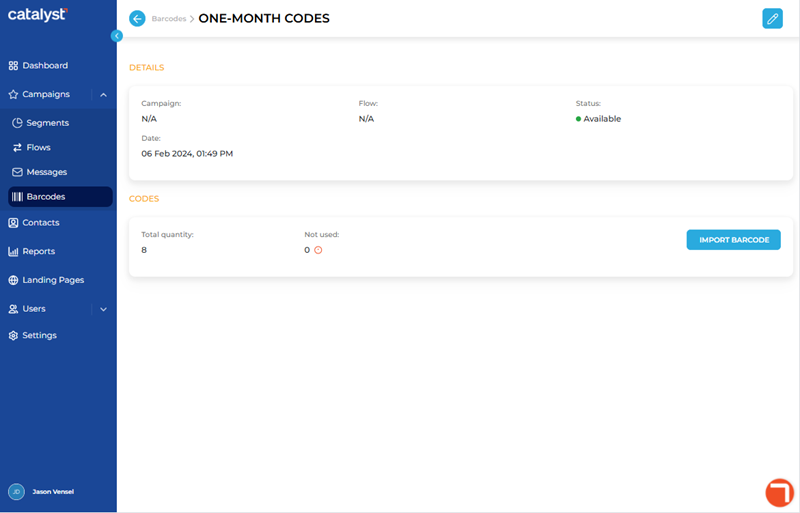
EDIT
The function provides the ability to rename the code batch. It is located in the top right corner of the panel for code batches that have a status of Available or Reserved; it is not available for any other code batch statuses.

Selecting the function opens the Details section, with the Barcode name field editable, and and functions.
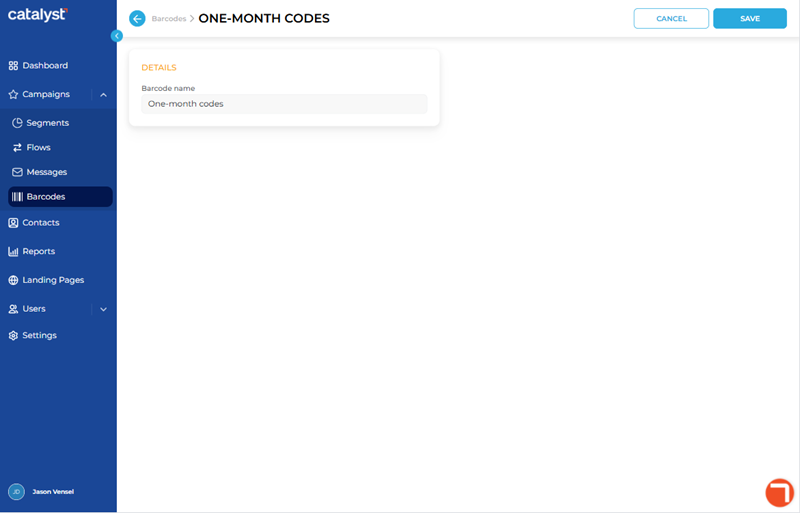
RECLAIM BARCODES
The function provides the ability to re-use unused codes from an existing code batch. It is located in the top right corner of the panel for code batches that have a status of Reclaimable; it is not available for any other code batch statuses.
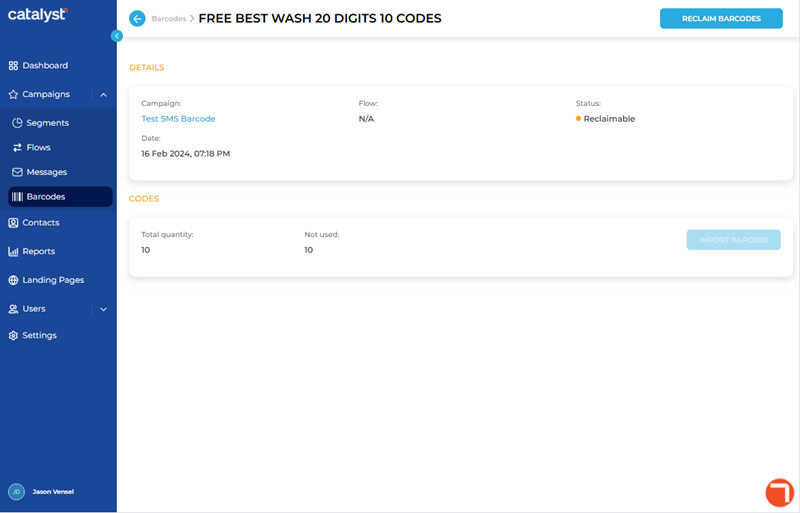
Selecting the function opens the Details section, with the Barcode name field editable, and and functions.
DETAILS
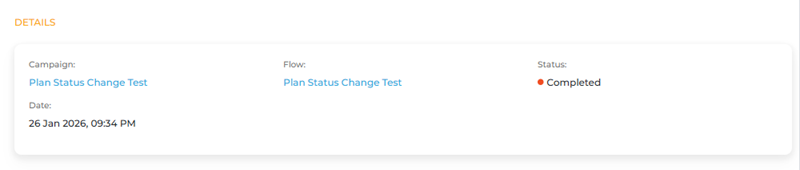
The Details section of the Code Details panel provides information about the code batch's campaign, flow, status, and date.
Campaign
The Campaign information provides the name, formatted as a navigation link, of the campaign to which the codes are assigned. The campaign name link can be selected to open the corresponding Campaign Details panel.
If the codes are not assigned to a campaign, N/A appears here instead.
Flow
The Flow information provides the name, formatted as a navigation link, of the flow to which the codes are assigned. The flow name link can be selected to open the corresponding Edit Flow panel.
If the codes are not assigned to a flow, N/A appears here instead.
Status
The Status information provides the state of the code batch.
Available
The Available status means the code batch can be used in a campaign.
Note: Additional codes can be imported (from the code Details panel) and added to a code batch with an Available status.
Completed
The Completed status means that all codes in the batch were used.
Reclaimable
The Reclaimable status means the un-used codes in the batch can be re-used.
Note: The un-used codes can be re-claimed from the code Details panel.
Reserved
The Reserved status means the code batch is currently assigned to a campaign.
Note: Additional codes can be imported (from the code Details panel) and added to a code batch with a Reserved status.
Processing
The Processing status means the code batch is being imported into Catalyst.
Failed
The Failed status means Catalyst attempted to import the code batch, but the process failed.
Date
The Date information provides the day, month, year, and time the code batch was imported into Catalyst.
CODES
The Codes section of the Code Details panel provides information about the total code quantity and unused quantity of codes in the code batch. An function is also available to add codes to the batch, if the code batch has a Status of either Available or Reserved. The function is visible, but unavailable if the code batch has any other status.

Total quantity
The Total quantity information provides the total number of codes included in the batch when it was imported into the system.
Not used
The Not used information provides the number of codes in the batch that have not yet been redeemed by recipients.
IMPORT BARCODE
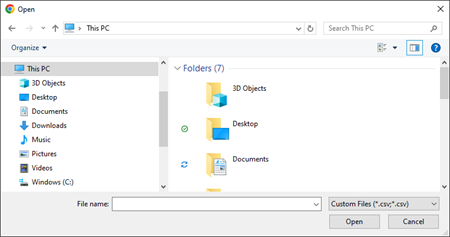
The function opens the standard Windows Open file selection dialog, which can be used to select and import a CSV file. Note: Depending on the code batch file size, the import process can take up to 15 minutes.
Updated: 081026