MESSAGES
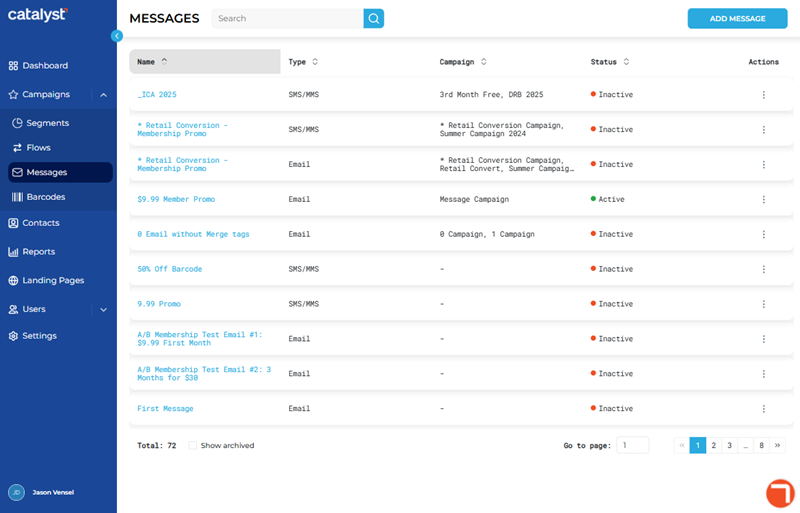
The Messages panel, accessible by selecting Campaigns>Messages from the Catalyst main menu, lists all of an organization's SMS text messages and email messages configured in Catalyst. An function is available to create and configure a new message (Add Message panel) and existing messages can be viewed (Message Properties panel) or edited (Edit Message panel). Messages can also be created by duplicating an existing message (Duplicate Message panel).
Search
The search tool provides the ability to locate a specific message by all or part of its Name or Campaign. Note: Search ignores archived messages (Status is Archived) unless Show archived is selected.
- The list auto-updates as soon as one (1) character is entered in the search tool; selecting Enter or the search icon isn't necessary to trigger the system to search (although selecting either will trigger the search function slightly faster).
- Search returns matches for any part of a message's name or campaign, for example, a search for as would return all of the following messages: message with Name set to "Reduce Unlimited Wash Churn" and message assigned to a campaign with Name set to "Wash Churn Reduction".
- Restore the list to all messages by clearing the search input.
ADD MESSAGE
The function opens the Add Message panel, where a new message can be created and configured.
Messages List
The messages list displays all existing messages.
Note: The messages list does not display archived messages by default, but they can be displayed by selecting Show archived.
Name
The Name column provides the name of the message. Select a message's name to view its configuration settings and a preview of the message in the Message Properties panel.
Type
The Type column provides the message's delivery method: SMS/MMS or Email.
SMS/MMS
The message is designed and formatted for SMS/MMS text message distribution.
The message is designed and formatted for email distribution.
Campaign
The Campaign column identifies the campaign(s), if any, to which the message is assigned. An en dash (-) appears here if the message isn't assigned to a campaign.
Note: A message can be assigned to multiple campaigns at the same time.
Status
The Status column identifies the current status of the message.
Active
The Active message status indicates the message is assigned to an active campaign. Note that active messages can't be edited.
Archived
The Archived message status indicates the message is assigned to an archived campaign. Note that archived messages can be restored.
Inactive
The Inactive message status indicates the message is either not assigned to any campaign or assigned to an inactive campaign.
Actions
The Actions column provides access to functions that can be used to manage an existing function. There are five (5) actions. However, the availability of these actions is dependent upon the message's status, whether its assigned to a campaign or flow, and whether the campaign or flow is active.
|
Message Status |
Available Actions |
|
Active |
Edit (*not available if message assigned to active campaign or flow) Duplicate |
|
Archived |
Edit Restore Duplicate |
|
Inactive |
Edit Duplicate Archive (*not available if message assigned to campaign or flow) Delete (*not available if message assigned to campaign or flow) |
Edit
Opens the message in the Edit Message panel. This action is only available for messages with a Status of Active, Future, or Draft.
Restore
Changes a message's Status from Archived to <INSERT>. This action is only available for messages with a Status of Archived.
Duplicate
Opens the Duplicate Message panel and creates a new message using the existing message's settings.
Archive
Changes a message's Status to Archived to hide it from the list. An archived message can be viewed with the Show archived function, as well as restored. This action is only available for messages that are not assigned to a campaign or flow.
Note: Archived messages can't be assigned to a campaign or flow.
Delete
Permanently removes the message from Catalyst. This action is only available for message that are not assigned to a campaign or flow.
Show archived
By default, archived messages are not included in the messages list. The Show archived function updates the messages list to include archived messages.
List Navigation
The list navigation tools at the bottom of the panel provide the ability to navigate the list of messages.
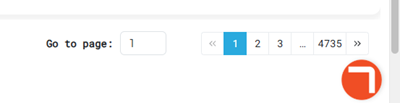
- Use the Go to page function to open a specific page by entering it in the provided field.
- Use the numeric page functions to navigate one page at a time.
- Use the last page >> and first page << functions to navigate to the end or start of the list.
Updated: 081026