SEGMENT PROPERTIES
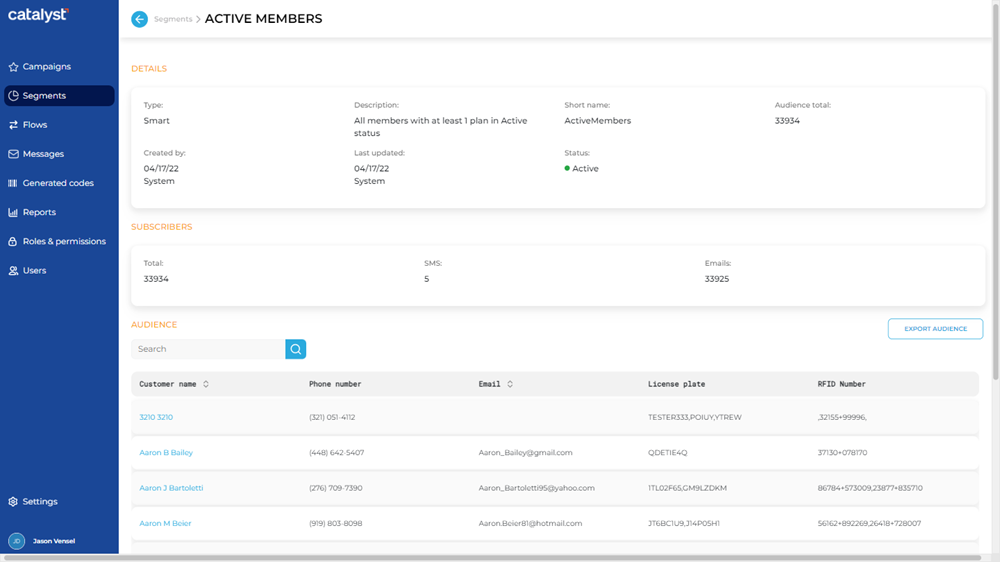
The Segment Properties panel, accessible by selecting a segment's name from the Segments panel, provides the ability to view a segment's configuration and the individual recipients that belong to its audience. It consists of three (3) sections: Details, Subscribers, and Audience. The panel also includes a function to export its audience to a CSV file, and depending on whether the segment is assigned to a campaign and/or archived, functions to edit, restore, or duplicate the segment.
Edit | Restore | Duplicate | Archive
The availability (and display) of these functions depends on the segment's status. Note: None of these functions are available or displayed for Smart segments.
|
Segment Status |
Available Functions |
|
Active (<ADDITIONAL CRITERIA>) |
|
|
Active (<ADDITIONAL CRITERIA>) |
|
|
Active (<ADDITIONAL CRITERIA>) |
|
|
Archived |
|
Edit
The Edit function closes the Segment Properties panel and opens the segment in the Edit Segment panel.

This function is available for segments with a Status of Active or Archived.
Restore
The Restore function changes the Status of a segment from Archived to Active, closes the Segment Properties panel, opens the Segments panel, and briefly displays a Success message stating, "Segment is restored successfully.".


This function is only available for segments with a Status of Archived.
Duplicate
The Duplicate function closes the Segment Properties panel and opens a new segment in the Duplicate Segment panel with the same configuration as the existing segment.

This function is available for segments with a Status of Active or Archived.
Archive
The Archive function sets the segment's Status to Archived, closes the Segment Properties panel, opens the Segments panel, and briefly displays a Success message stating, "Segment is archived successfully.".


This function is only available for segments with a Status of Active.
DETAILS
The Details section displays the segment's configuration settings.
Type
The segment type: Smart or Standard.
Standard
Standard segments are created and configured by Catalyst users. They are also called Customer segments.
Smart
Smart segments are included with all Catalyst accounts. There are also called System segments. They can't be edited, duplicated, or archived. There are fifteen (15) Smart segments.
Description
Text that helps identify the customers that belong to the segment.
Short name
An abbreviated name for the segment.
Audience total
The number of recipients currently in the segment.
Created by
The date (in mm/dd/yy format) and Catalyst user (first name and last name) who added and configured the segment.
Note: The Created by date and user value for all Smart segments is 04/17/22 and System.
Last updated
The date (in mm/dd/yy format) and Catalyst user (first name and last name) who last modified the segment.
Status
Note: The Last updated date and user value for all Smart segments is 04/17/22 and System.
SUBSCRIBERS
The Subscribers section includes audience data.
Total
The number of recipients currently in the segment. It is the sum of the SMS value and the Emails value.
SMS
The number of SMS text message recipients currently in the segment.
Emails
The number of email message recipients currently in the segment.
AUDIENCE
The Audience section includes a list of all contacts in the segment, a search tool to locate a specific contact, and an export function to export the entire contact list to a CSV file.
Search
The search tool provides the ability to locate a specific contact by all or part of its Name, Phone number, Email, License plate, or RFID Number.
- The list auto-updates as soon as one (1) character is entered in the search tool; selecting Enter or the search icon isn't necessary to trigger the system to search (although selecting either will trigger the search function slightly faster).
- Search returns matches for any part of a contact's name, phone number, email address, license plate, or RFID number.
- Restore the list to all messages by clearing the search input.
EXPORT AUDIENCE
The function immediately, without confirmation or any other prompt, exports and downloads the contents in the segment list to a CSV file.
- The filename format is <Segment_Name>_YYYYMMDD.csv, for example, Active_Members_20240801.csv.
- The file download location is the download folder configured for the user's web browser.
Customer name
The recipient's first name, middle initial, and last name, if available.
Important: Each customer name is formatted as a link, but selecting it does nothing.
Phone number
The recipient's phone number, if available.
The recipient's email address, if available.
License plate
The recipient's license plate, if available.
RFID Number
The recipient's RFID tag value, if available.
Updated: 080126