LANDING PAGE PREVIEW (LANDING PAGES)
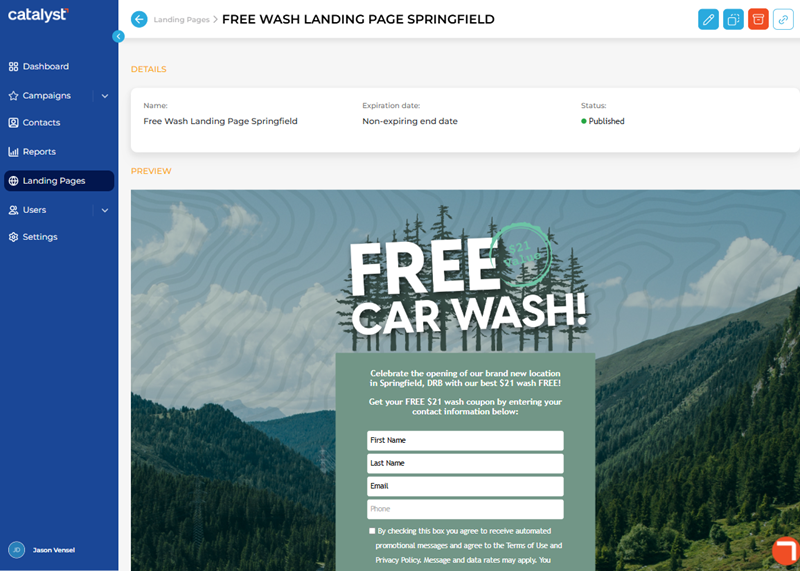
The Landing Page Preview panel, accessible by selecting the Name of an existing landing page from the LANDING PAGES panel, provides the ability to preview an existing HTML-based form designed to collect customer information for use in marketing campaigns. The panel includes functions, depending on the landing page's status, to edit the landing page, duplicate the landing page, archive the landing page, restore an archived landing page, publish a landing page, or copy the landing page's URL.
Functions
The functions that are available at the top of the panel depend on the landing page's status.
|
Function |
Draft |
Published |
Archived |
|
Edit |
|
|
|
|
Duplicate |
|
|
|
|
Archive |
|
|
|
|
Publish |
|
|
|
|
Copy link |
|
|
|
|
Restore |
|
|
|


Edit
The Edit function opens currently selected landing page in the Edit Landing Page panel, where it can then be changed or updated.

Duplicate
The Duplicate function opens the Duplicate Landing Page panel and creates an identical copy of the currently selected landing page, where the new landing page can then be modified and saved as a new landing page.

Archive
The Archive function immediately changes the status of the currently selected landing page to Archived and opens the Landing Pages panel.

Publish
The Publish function immediately changes the status of the currently selected landing page to Published and opens the Landing Pages panel.

Copy link
The Copy link function immediately copies the landing page's URL, for example, https://catalyst.drb.com/landing/4f037b07-34f9-4e6b-83b2-cae8becaf40f, to the clipboard so it can be pasted for use elsewhere.

Restore
The Archive function immediately changes the status of the currently selected landing page from Archived to Draft and opens the Landing Pages panel.
Important: If a published landing page is archived and then restored, its status is set to Draft; it is not published.

DETAILS
The Details section provides the name, expiration date, and status of the landing page.

Name
The Name provides the unique name value configured for the landing page.
Expiration date
The Expiration date provides the date the landing page is, or was if the date already occurred, configured to end.
non-expiring end date
If non-expiring end-date appears under Expiration date, the landing page is (was) not configured to automatically stop publishing. It will continue to be available to the public until an expiration date is configured or it is archived.
Status
The Status provides the landing page's current status: Draft, Published, or Archived.
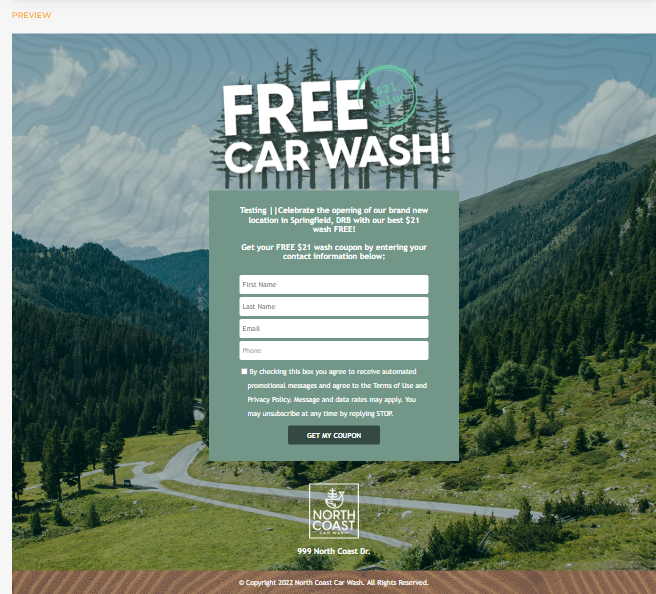
PREVIEW
The Preview section provides a fully interactive example of how the landing page will look and function when published. Text can be entered in fields, options can be selected, links can be opened, and functions can be selected.
Updated: 081026