LANDING PAGES
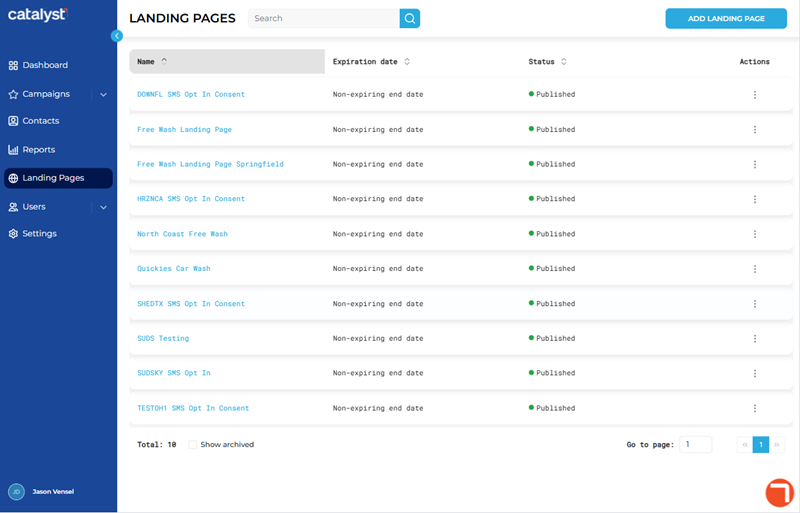
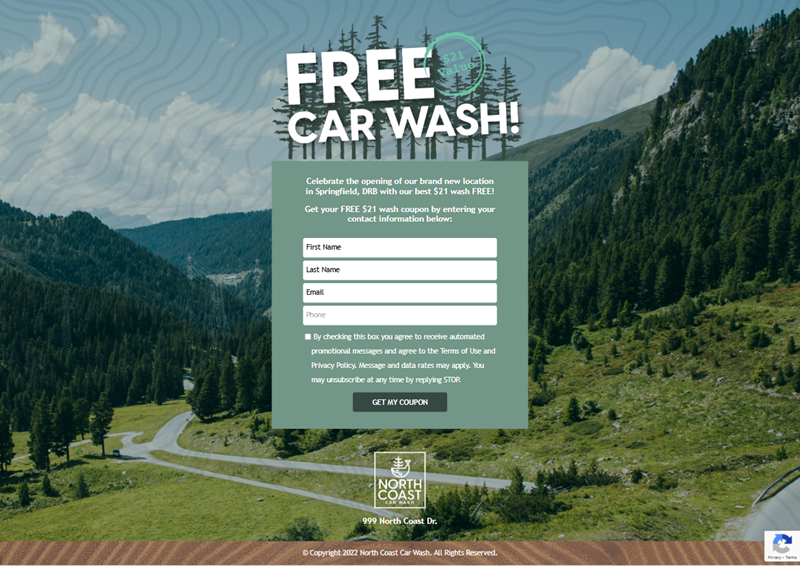
The Landing Pages panel, accessible by selecting Landing Pages from the Catalyst main menu, provides the ability to create, design, and publish attractive and engaging, digital, HTML-based forms to collect customer information, such as name, email, and phone number, as well as consent for use in marketing campaigns. Organizations can use landing pages to extend their marketing reach, while enhancing the overall customer experience by simplifying data collection. Hosting for published landing pages is included as part of an organization's Catalyst system so no additional hosting services are necessary. Publishing a landing page generates a link, so the landing page can be shared via QR code, SMS message, and/or email message, facilitating outreach to new customers. Configuration also includes the ability to set expiration dates, as well as validate customer information with Patheon.
Note: Users must belong to either the Power User or Tenant Admin user role to access the Landing Pages panel in Catalyst.
Panel Tools
The Landing Pages panel includes the following tools: search, display archived landing pages, and create a new landing page.

Search
The search tool provides the ability to locate a specific landing page by all or part of its Name or Status.
Note: Search ignores archived landing pages (Status is Archived) unless Show archived is selected.
- The list auto-updates as soon as one (1) character is entered in the search tool; selecting Enter or the search icon isn't necessary to trigger the system to search (although selecting either will trigger the search function slightly faster).
- Search returns matches for any part of a landing page's name or status, for example, a search for as would return all of the following landing pages: landing page with Name set to "Halloween Wash Signup" and landing page with Name set to "Ask How to Save Money Signup".
- Restore the list to all landing pages by clearing the search input.
ADD LANDING PAGE
The function opens the Add Landing Page panel, where a new landing page can be created and configured.
Landing Pages List
The landing pages list provides all existing landing pages.

Name
The Name column provides the landing page name, as configured in the Add Landing Page panel (when creating a new one) or Edit Landing Page panel (when editing an existing one). Select a landing page's name to open it in the <Landing page Name> Landing Page Preview panel.
Expiration date
The Expiration date column identifies whether the landing page expires, and if so, the date it expires.
MMDDYYYY
The specific date (month, day, and year) the landing page expires.
Non-expiring end date
If Non-expiring end date appears in the column, no expiration date is configured for the landing page.
Status
The Status column identifies a landing page's current state. There are 3 (three) statuses.
Archived
The Archived status indicates that the landing page is no longer published and the Archive action was applied to hide it in the landing page list. Note: Archived landing pages are not displayed by default, but can be viewed by selecting the Show archived function.
Draft
The Draft status indicates that the landing page was created, but its configuration is incomplete.
Published
The Published status indicates that the landing page is currently live and available for visitors to add themselves to the contacts list.
Actions
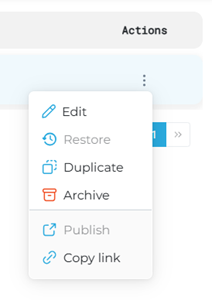
The Actions column provides a function that opens the Actions menu for the corresponding landing page. There are six (6) available actions. However, the actions that are available (enabled) for a specific landing page depend on the landing page's status.
|
Status |
Edit |
Restore |
Duplicate |
Archive |
Publish |
Copy link |
|
Archived |
|
|
|
|
|
|
|
Draft |
|
|
|
|
|
|
|
Publish |
|
|
|
|
|
|


Edit
The Edit action opens the landing page in the Edit Landing Page panel. This action is only available for landing pages with a Status of Draft or Active.
Restore
The Restore action changes a segment's Status from Archived to Active. This action is only available for landing pages with a Status of Archived.
Duplicate
The Duplicate action opens the Duplicate Landing Page panel and creates a new landing page using the existing landing page's settings. This action is only available for landing pages with a Status of Archived, Draft, or Publish.
Archive
The Archive action changes a landing page's Status to Archived to hide it from the list. An archived landing page can be viewed with the Show archived function, as well as restored. This action is only available for landing pages with a Status of Draft, or Publish.
Publish
The Publish action makes the landing page live, so it can be distributed and recipients can begin signing up with it. This action is only available for landing pages with a Status of Draft.
Copy link
The Copy link action copies the landing page's URL to the clipboard. A message briefly opens to confirm the link is copied. This action is only available for landing pages with a Status of Publish.
- Example Link: catalyst.drb.com/landing/0003f440-2519-4929-b324-9056c07eb687
Total
The Total value at the bottom of the panel provides the cumulative number of landing pages.

Show archived
The Show archived tool provides the ability to display or hide (the default selection) completed landing pages. Use this to reduce the number of landing pages in the list.
Note: The search tool only includes archived landing pages if Show archived is selected.
List Navigation
The list navigation tools at the bottom of the panel provide the ability to navigate the list of landing pages.
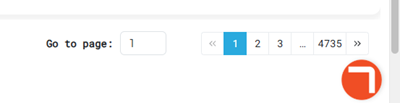
- Use the Go to page function to open a specific page by entering it in the provided field.
- Use the numeric page functions to navigate one page at a time.
- Use the last page >> and first page << functions to navigate to the end or start of the list.
Updated: 081026