Generate the Campaign Progress Report
Use the following steps to generate the Campaign Progress report, which provides progress and message delivery metrics for a single, specific campaign. Once the report is generated, it can be exported and downloaded to a PDF file or XLS file.
Open Report Settings
- Log In to Catalyst.
- Select Reports. The Reports panel opens.
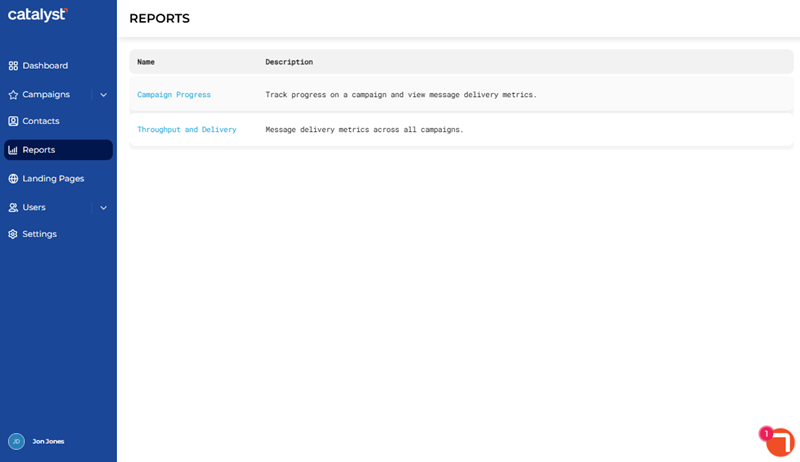
- Select Campaign Progress. The Campaign Progress panel opens.
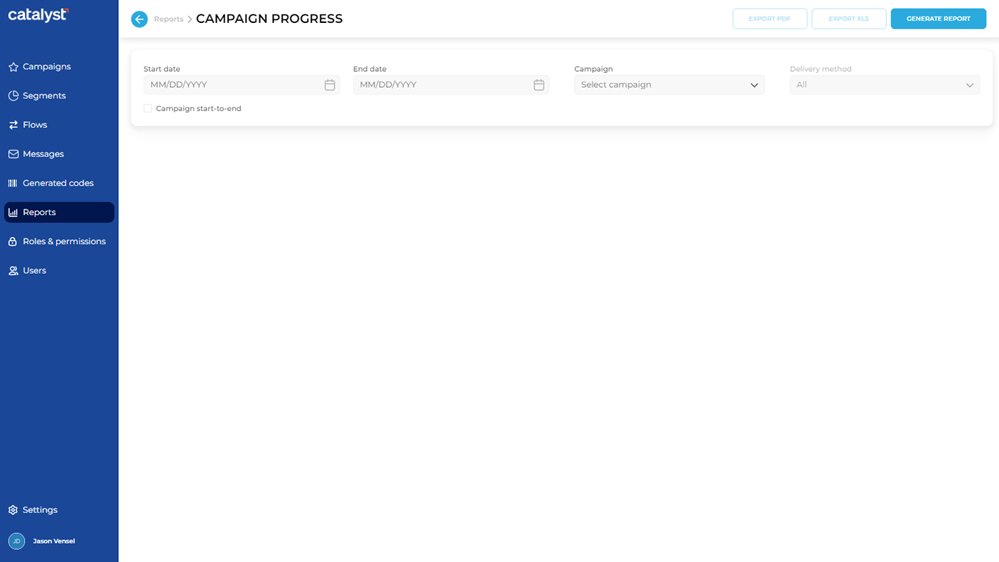
Set Time Period
Generate the Campaign Progress report for either a fixed date range or the entire length of time the campaign ran.
Fixed Date Range
Use the Start date and End date settings to generate the report of a specified date range.
- In Start date, enter the first day to include in the report in MMDDYYYY format. Note: Manually enter the date or use the provided calendar to select the date.
- In End date, enter the last day to include in the report in MMDDYYYY format. Note: Manually enter the date or use the provided calendar to select the date.
Start to Finish
Use the Campaign start-to-end option to generate the report for the campaign's full time period.
- Select Campaign start-to-end, to generate the report for the campaign's full time period.
- Note: This disables the Start date and End date settings.
Select a Campaign
- In Campaign, select the campaign for which the report is being generated.
Generate Report
- Select . The Campaign Progress panel opens the report.
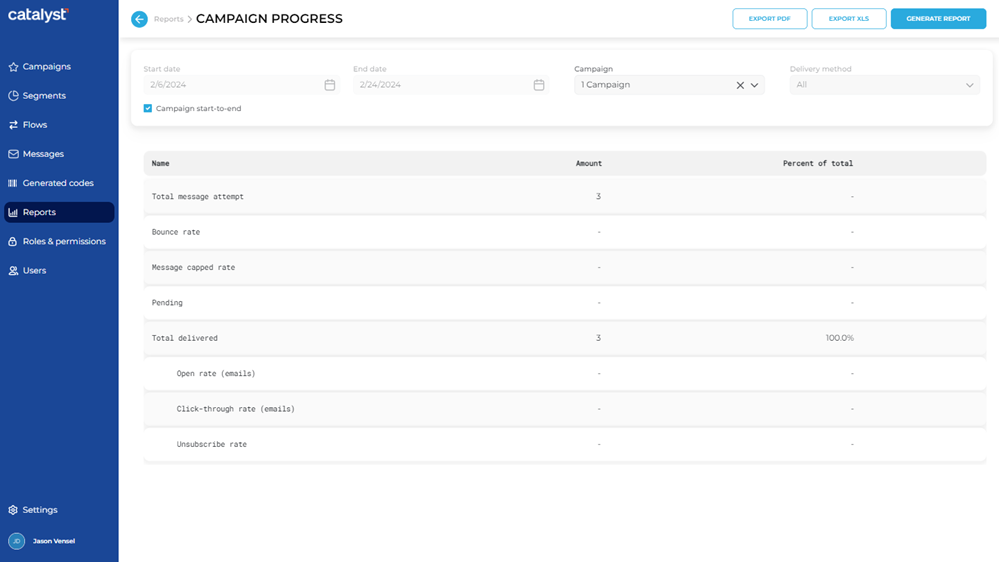
- Note: The function and function are now enabled.
Export Report
After the report is generated, the report data can be exported to a PDF (.pdf file) or XLS (.xls file).
Use the following steps to generate and download the current report in a PDF file.
- Select . The PDF file is generated and automatically downloaded to the download location configured for the web browser from which the report is generated.
- The PDF filename format is <CAMPAIGN NAME> MM_DD_YYYY.pdf, where <CAMPAIGN NAME> is the name of the selected campaign and MM_DD_YYYY is the end date of the report.
XLS
Use the following steps to generate and download the current report in an XLS file.
- Select . The XLS file is generated and automatically downloaded to the download location configured for the web browser from which the report is generated.
- The XLS filename format is <CAMPAIGN NAME> MM_DD_YYYY.xls, where <CAMPAIGN NAME> is the name of the selected campaign and MM_DD_YYYY is the end date of the report.
Updated: 081026