CAMPAIGNS
The Campaigns panel provides the ability to view all existing campaigns (draft, active, future, completed, stopped, and archived). An function is also available to create a simple campaign that sends a message to all recipients that belong to a specified customer segment, or an advanced campaign that only sends a message (or even multiple messages) to a recipient that belongs to the specified customer segment when that recipient satisfies specified triggers, actions, and conditions. A campaign's name can be selected to view its settings in the Campaign Properties panel, view the recipients in its customer segment, export its customer segment; edit it, duplicate it, or delete it, or even send a sample test message.
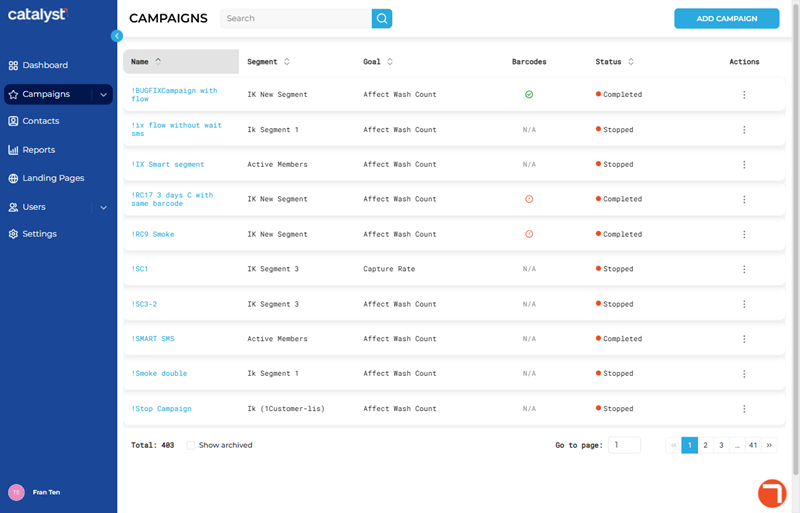
A sub-menu for campaigns can be accessed by expanding the Campaigns main menu entry. It provides access to the following related panels:
Panel Tools
The Campaigns panel provides tools to search for an existing campaign, view archived campaigns, add a campaign, and add a campaign with a flow.

Search
The search tool provides the ability to locate a specific campaign by all or part of its Name, Segment, or Goal.
Note: Search ignores archived campaigns (Status is Archived) unless Show archived is selected.
- The campaigns list auto-updates as soon as one (1) character is entered in the search tool; selecting Enter or the search icon isn't necessary to trigger the system to search (although selecting either will display results slightly faster).
- Search returns matches for any part of a campaign's name, segment, or goal. For example, a search for as would return all of the following campaigns: campaigns with Name set to "Reduce Unlimited Wash Churn", campaigns with Segment set to "Unlimited Best Wash Members" and campaigns with Goal set to "Affect Wash Count".
- Restore the list to all campaigns by clearing the search input.
ADD CAMPAIGN
The function opens the Create Campaign dialog, which prompts the user to select the campaign type to create: One-time Send or Automated Campaign.
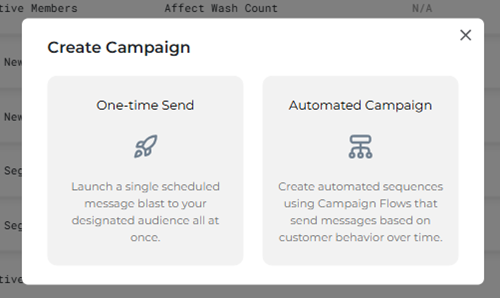
One-time Send
The One-time Send campaign type provides the ability to create a single, scheduled message campaign that is sent to a specific audience one time and then it ends. Selecting this option opens the CAMPAIGN BUILDER panel, where a new campaign can be created and configured.
Automated Campaign
The Automated Campaign campaign type provides the ability to create a message campaign with automated workflow sequences, based on customer actions. Selecting this option opens the CAMPAIGN BUILDER panel, where a new campaign can be created and configured.
Campaigns List
The campaigns list displays all existing campaigns. By default, archived campaigns are not displayed.
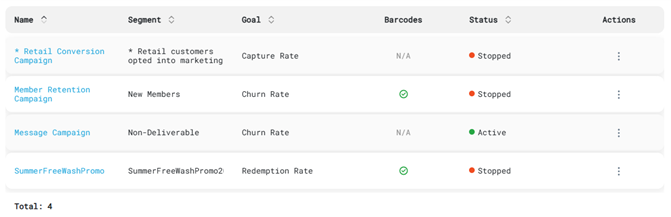
Name
The Name column provides the name of the campaign. Select a campaign's name to view its properties, message preview (if one is configured), and each recipient in its configured segment in the Campaign Properties panel.
Segment
The Segment column identifies the campaign's target audience.
Goal
The Goal column identifies the campaign's intended purpose. There are five (5) available goals.
- Affect Wash Count
- Capture Rate
- Churn Rate
- Redemption Rate
- Visit Rate
Barcodes
The Barcodes column provides the percentage of barcodes sent for the corresponding campaign. When the percentage reaches 100%, all codes generated for the campaign are used so further advertisement with them will be obsolete.
N/A
No barcodes. The corresponding campaign does not use any barcodes.
Barcodes Available
All barcodes are fully available and in use for this campaign.
Running low on codes!
Need to add more codes to this campaign!
Status
The Status column identifies a campaign's current state. There are six (6) statuses.
Active
The Active status indicates that the campaign is currently running.
Archived
The Archived status indicates that the campaign completed and the Archive action was applied to hide it in the campaign list. Note: Archived campaigns are not displayed by default, but can be viewed by selecting the Show archived function.
Completed
The Completed status indicates that the campaign was active and achieved its goal. It is no longer active.
Draft
The Draft status indicates that the campaign was created, but its configuration is incomplete.
Future
The Future status indicates that the campaign is configured, but has not started running.
Stopped
The Stopped status indicates that the campaign was manually stopped (using the function on the campaign's Campaign Properties panel) by a Catalyst user before it completed.
Actions
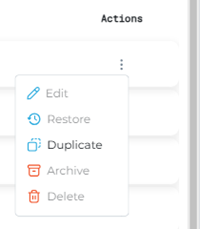
The Actions column provides a function that opens the Actions menu for the corresponding campaign. There are six (6) available actions. However, the actions that are available (enabled) for a specific campaign depend on the campaign's status.
Note: The Actions menu does not include a function to stop a campaign. To stop a campaign, select the campaign's name and use the function available from the Campaign Properties panel.
|
Status |
Edit |
Restore |
Duplicate |
Archive |
Delete |
|
Active |
|
|
|
|
|
|
Archived |
|
|
|
|
|
|
Completed |
|
|
|
|
|
|
Draft |
|
|
|
|
|
|
Future |
|
|
|
|
|
|
Stopped |
|
|
|
|
|


Edit
The Edit action opens the corresponding campaign in the Edit Campaign panel, where the campaign's settings can be viewed and changed. This action is only available for campaigns with a Status of Draft or Future.
Restore
The Restore action changes a campaign's Status from Archived to Completed. This action is only available for campaigns with a Status of Archived.
Duplicate
The Duplicate action opens the Duplicate Campaign panel and creates a new campaign using the existing campaign's settings. This action is available for all campaigns, regardless of Status.
Archive
The Archive action changes a campaign's Status from Completed to Archived to hide it from the campaigns list by default. An archived campaign can be viewed with the Show archived function, as well as restored. This action is only available for campaigns with a Status of Completed or Stopped.
Delete
The Delete action permanently removes the campaign from Catalyst. This action is only available for campaigns with a Status of Draft or Future.
Show archived
The Show archived tool provides the ability to display or hide (the default selection) completed (archived) campaigns. Use this to control the campaigns displayed in the list.
Note: The search tool only includes archived campaigns when Show archived is selected.
List Navigation
The list navigation tools at the bottom of the panel provide the ability to navigate the list of campaigns.
- Use the Go to page function to open a specific page by entering it in the provided field.
- Use the numeric page functions to navigate one page at a time.
- Use the last page >> and first page << functions to navigate to the end or start of the list.
Updated: 081026